Salesforce

Shipments Introduction

« Go Back
Content
Shipments Introduction
In this guide, you’ll learn how shipments work. By the end of this guide, you’ll be able to:
Define a shipment; Recognize the business benefits of using shipments; Become familiar with the shipment user interface; and Understand the different shipment statuses.

Shipments Overview

A shipment ensures the right product reaches the right customer on the right date. It involves managing logistics like packaging, container assembly, and delivery details, while also updating inventory records.

In iQ Grower ERP, shipments are central to the order fulfillment process. A single customer order can be fulfilled in a single shipment or divided into multiple shipments. For example: 

  • One shipment to a single store location. 

  • Three shipments to three different store locations on different days. 

  • Multiple shipments to the same store location on different days. 

The Shipment object in iQ Grower ERP includes shipment optimization, container building, and product picking. 

Benefits of Using Shipments

  • Master Order draw-down: Draw down on a master order, making customizations with each new draw-down.

  • Optimize shipments: Maximize freight efficiency using the Shipment Optimizer, which organizes product placement in containers. 

  • Container building: Follow the container sheets generated by iQ Grower ERP to build containers to the correct specifications. 

  • Use Pull Lists: Pick-register multiple shipments at once using a pull list to adjust inventory records as they are prepared for delivery. 

  • Customize your workflow: Tailor the shipping process to your needs and customer preferences with Order Types. 

  • Manage your workflow: Use the status bar to monitor your shipments, identify what needs attention, and reduce unnecessary communication.

Shipment User Interface Tour

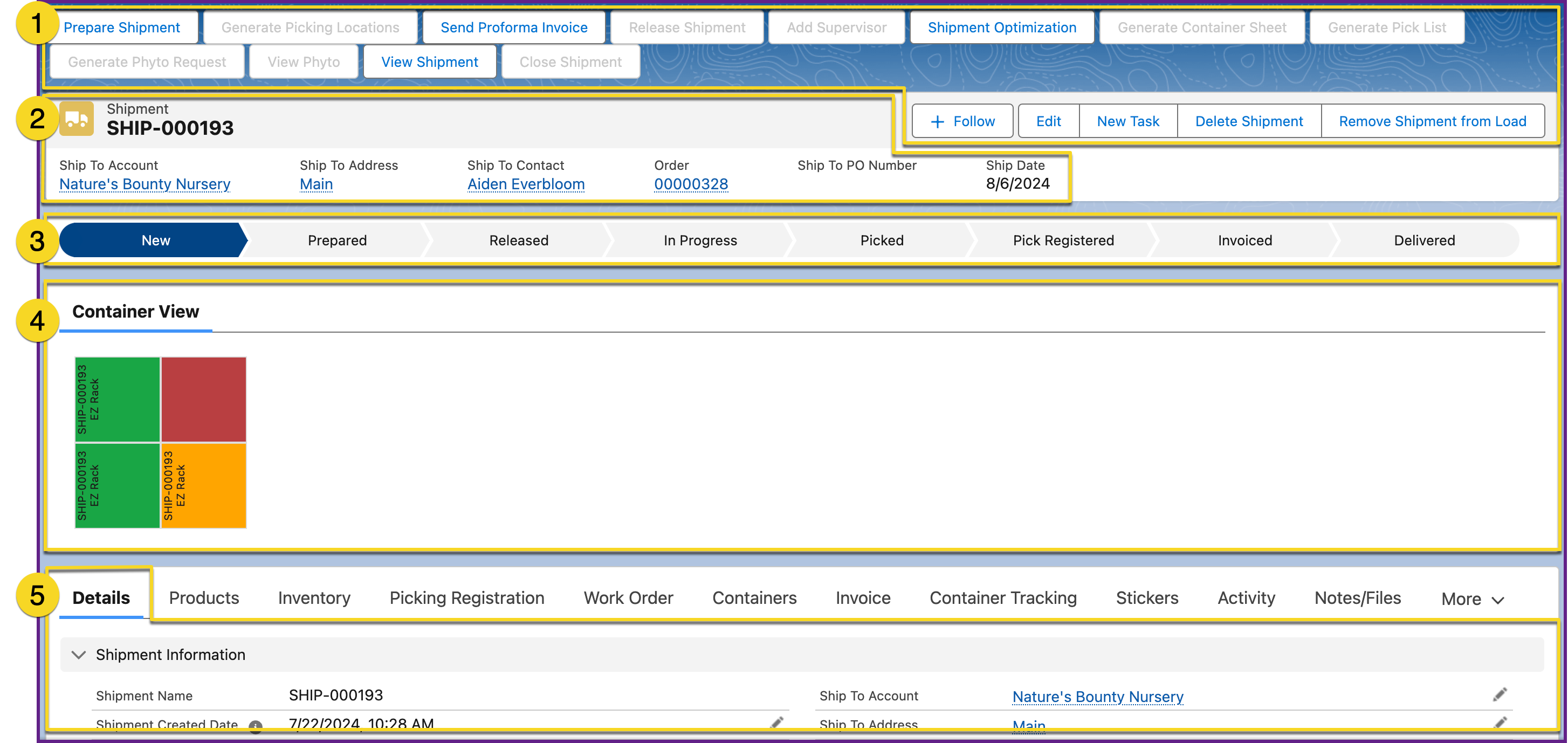
Here is an example of a shipment to deliver 100 Dahlias to Nature’s Bounty Nursery. 


  1. Quick Action: Access commonly used functions or interact with the shipment.

  2. Highlights Panel: Summarizes key shipment information.

  3. Status Bar: Tracks shipment progress and indicates the next required action. 

  4. Container View: Displays a visual representation of the shipment, with colors indicating rack fill status.

  5. Main Information Area: The primary area for working with the shipment. Additional tabs are aligned horizontally for quick access to essential information and functions.

  • Details: Provides an overview of key order information.

  • Products: Lists all products in the shipment. 

  • Inventory: Assign picking priorities, show picking locations, and include value-add products.

  • Picking Registration: Update inventory records after products are picked.

  • Work Order: Displays the tasks required to complete the shipment.

  • Containers: Shows a detailed list of containers, layers, and totals. 

  • Invoice: Displays invoices related to the shipment. 

  • Container Tracking: Lists container tracking transactions for this shipment. 

  • Stickers: Shows stickers used for products on this shipment. 

  • Activity: Displays calls and emails related to this shipment.

  • Notes/Files: Shows attachments and files related to this shipment.

  • Quick Links/Chatter: Provides quick access to linked tables and a place to communicate internally about this shipment.

  • Photos: Displays an album of photos related to this shipment. 

Shipment Status Bar

The status bar displays the current shipment status and updates automatically as tasks are completed. It allows you and your team to quickly track shipment progress, showing what’s finished and what needs attention. The order type influences how quickly the shipment advances through each status.


There are eight statuses in the Shipment Status Bar: 

  1. New: Newly created from an order. 

  2. Prepared: Additional information, like picking locations and a proforma invoice, is added. The shipment is optimized. 

  3. Released: Added to a load, if required by the order type workflow (optional in iQ Grower ERP). 

  4. In Progress: Shipping containers are built, and products are picked from their locations. 

  5. Picked: The shipment is assembled.

  6. Pick Registered: Inventory records are updated, and containers are ready to be loaded onto a truck.

  7. Invoiced: Invoice data is generated. 

  8. Delivered: Delivery confirmation received.

Summary

Using shipments in iQ Grower ERP helps you efficiently deliver products to your customers. The user interface streamlines workflows and simplifies decision-making by providing quick access to essential information. Features like the shipment optimizer, pull lists, and order types allow you to customize and manage your workflow for maximum efficiency. 

See Also 

Create a Shipment Learning Guide

Work with a Shipment Learning Guide

Orders Types Explainer

Shipments Overview:overview;
Benefits of Using Shipments:benefits;
Shipment User Interface Tour:interface;
Shipment Status Bar:bar;
Summary:summary
System Information
Shipments-Introduction
Checked
Not Checked
 
 
Learning Guide
Knowledge


Powered by